
A/V Instructions
Great Room
Connecting to the Sound System:
Make sure the PA system is turned on with the power switch on the back lower right hand side.
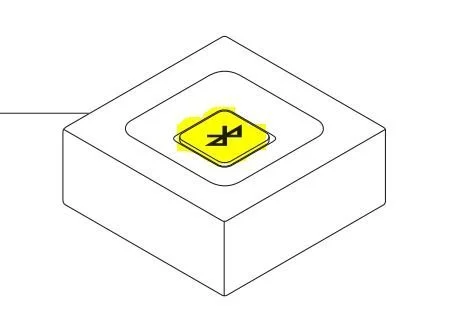
Using Bluetooth:
Make sure the small Logitech box on top of the cabinet is blinking blue. If it is not, hit the Bluetooth button in the middle
Connect Your Device:
Mobile devices: Go to the Bluetooth menu and scan for Bluetooth devices. Locate Logitech BT Adapter in the list of available devices and tap it to connect. Once the connection is established, the LED on your adapter should go from blinking to solid.
Windows: Open your Control Panel - Select Hardware and Sound - Select Devices and Printers - Select Bluetooth Devices - Click Add a device - Select Logitech BT Adapter from the list of devices, and then click Next - Once your Logitech Bluetooth Adapter is paired and connected, you'll need to select it as the default playback device in the Windows Sound Settings. Here's how - Open your Control Panel - Select Hardware and Sound - Select Manage audio devices (under Sound) - Select "Speakers Bluetooth Hands-free-audio" and click Set Default - Click OK
Mac: From the Apple menu, select System Preferences - Click "+" to add a new Bluetooth device. - Select Logitech BT Adapter from the list of available devices and click Continue. - Once your Logitech BT Adapter is paired and connected, you'll need to select it as the default output device in System Preferences. Here's how - From the Apple menu, select System Preferences - Select Sound - On the Output tab, select Logitech BT adapter - Close System Preferences.
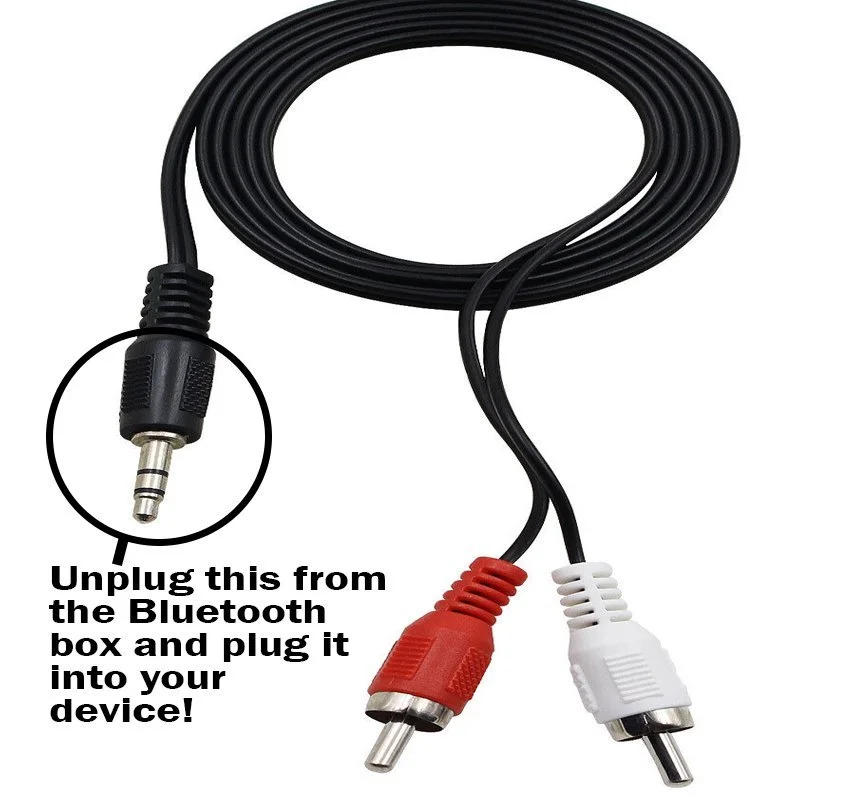
Using a Wire:
To connect your device without Bluetooth, using a headphone jack, you need to remove the headphone jack from the bluetooth box on top of the cabinet and plug it into the headphone jack on your device. You can control the volume from your device and/or with the level knob above the red & white tape input jacks on the PA system.
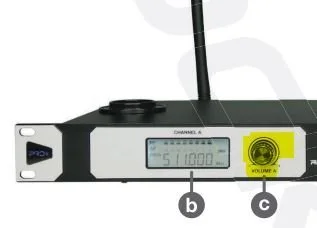
Using the Wireless Microphones:
Make sure the PA system is turned on with the power switch on the back lower right hand side.
Make sure that the wireless microphone system on top of the cabinet is on. The power button is on the right side of the front panel.
Pick up a microphone and hold the power button for 2-3 seconds to turn it on. While using the microphone, you can also use this button to mute and unmute it.
Each mic has a volume control on the front panel of the microphone unit on top of the cabinet.
The mics are connected to channels 1 and 2 on the PA unit. You can also control the volume on each mic by using the level knob on each channel.
When you are done, put the mics back in their charging cradles, but leave the unit on so that they can charge.
Temple
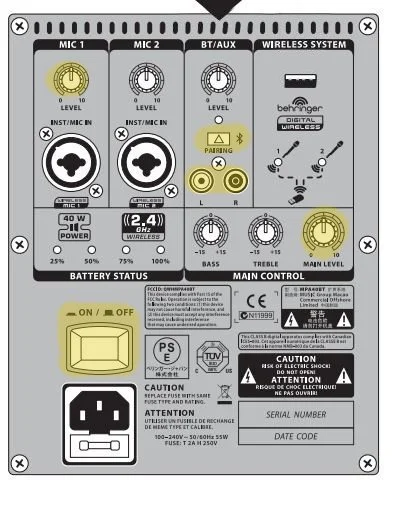
Connecting to the P.A. System:
Make sure that the power is turned on
Connect with Bluetooth:
Press and hold the BT/AUX/PAIRING BUTTON until the LED flashes quickly
Open Bluetooth on your device and look for “BEHRINGER MPA40BT”
When the LED light is solid your device is connected
You can control the volume with the BT/AUX Level knob
Using a Wire:
Find the RCA to Headphone cord coming out of the BT/AUX jacks
Plug the other end into the headphone jack on your device
You can control the volume with the BT/AUX Level knob
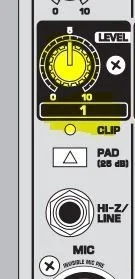
Using the Microphone:
There is a microphone connected to channel one on a stand for you to use.
You can control the volume with the MIC 1 level knob